Computer Disposal in Singapore: The Data Security Steps You Can't Skip
By Junk Value Team
Your Old Laptop Knows More About You Than You Think
That dusty desktop tower under your desk? It still holds your NRIC scans. Your banking logins. Tax documents. Maybe a decade of photos you forgot existed.
When the deadline isn't yesterday and you want to compare honestly, commercial team gives you a photo quote with surcharges confirmed up front.
In our 10+ years of clearing Singaporean homes and home offices, we've seen people hand over computers with zero data preparation — hard drives still spinning, browsers still logged in. It's one of the most common oversights we encounter, and it's the one with the most serious consequences.
This guide covers what you actually need to do before any computer leaves your possession — whether you're disposing of a single old laptop or clearing out a home office full of ageing PCs.
Why "Factory Reset" Isn't Enough
Here's the uncomfortable truth: a standard factory reset on Windows or macOS doesn't erase your data. It removes the index — the map that tells the operating system where files live — but the actual data remains on the drive until it's overwritten.
Anyone with freely available recovery software (we're talking tools a teenager could download) can reconstruct files from a "reset" drive. Bank statements. Personal photos. Saved passwords. Client documents if you've ever worked from home.
For Singaporeans handling sensitive personal data — and under the PDPA, that's essentially everyone — this isn't a theoretical risk. It's a practical one.
HDDs vs SSDs: They Need Different Treatment
This is where most online guides fall short. The wipe method that works for a traditional spinning hard drive (HDD) does not work the same way for a solid-state drive (SSD). They store data differently, and they need to be handled differently.
Traditional Hard Drives (HDDs)
For HDDs, you have two reliable options:
Software overwrite (if the drive still works):
Use a tool like DBAN (Darik's Boot and Nuke) or the built-in diskpart clean all command in Windows. These write random data across every sector of the drive — multiple passes. One pass is generally sufficient for personal use; three passes satisfies most paranoia.
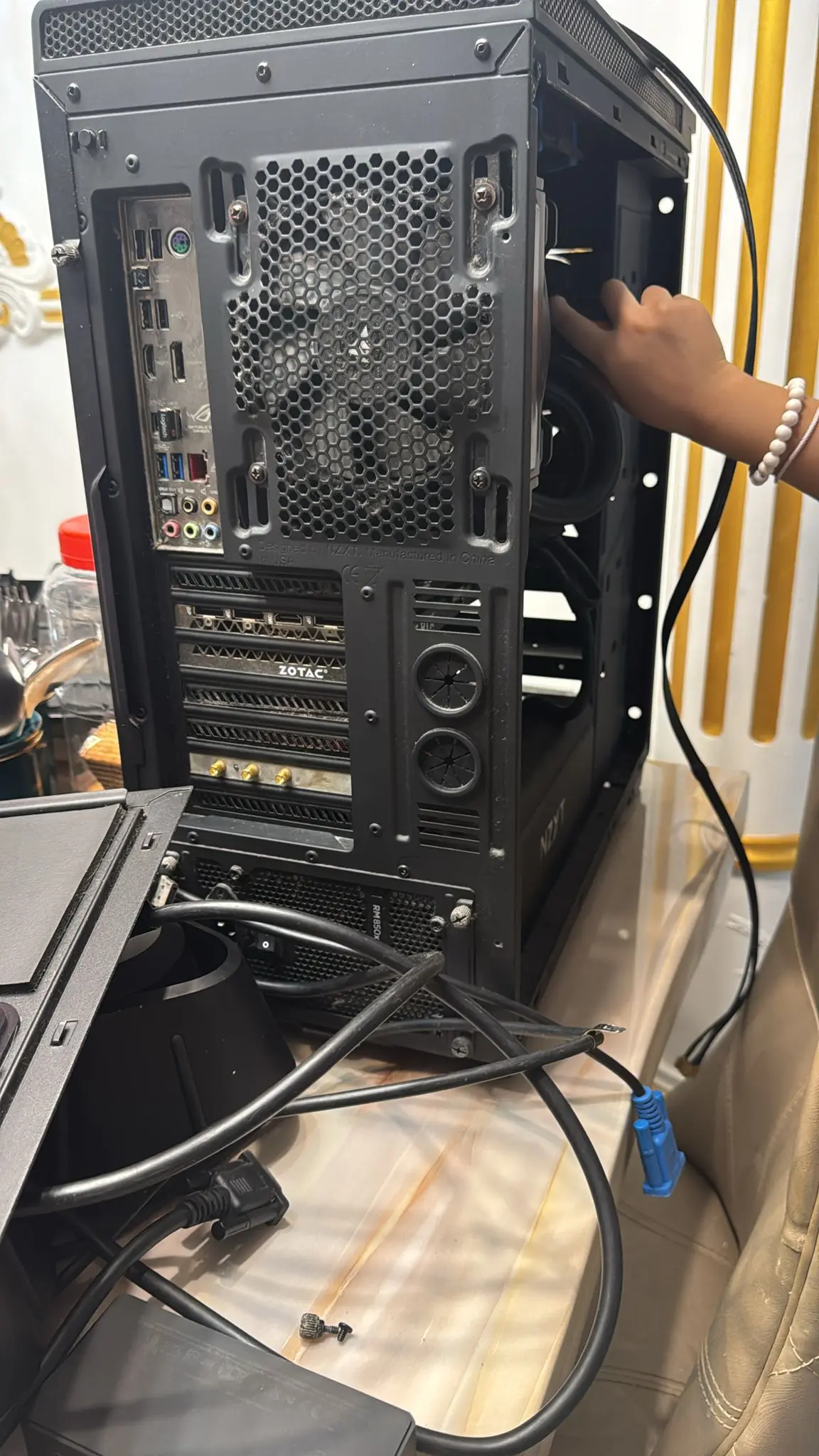
Physical destruction (if the drive is dead or you want certainty): Remove the drive from the computer. A few firm strikes with a hammer through the platters will do it. Some people drill holes. The point is to physically shatter the magnetic platters inside. Messy, but definitive.
Solid-State Drives (SSDs)
SSDs are trickier. They use wear-levelling algorithms that spread data across memory cells unpredictably. A standard overwrite tool can't guarantee it's reached every cell.
Your best options:
- Manufacturer's secure erase tool. Samsung, Kingston, Crucial — most SSD makers provide a free utility that issues an ATA Secure Erase command directly to the drive's controller. This is the most reliable software method.
- Enable hardware encryption, then wipe the key. If your SSD supports hardware encryption (most modern ones do), enabling it and then performing a secure erase effectively makes all existing data unreadable.
- Physical destruction. For SSDs, this means shredding the memory chips themselves — not just bending the board. Cut through the NAND chips with tin snips if you're doing it at home.
What About NVMe Drives in Modern Laptops?
Same principle as SSDs — use the manufacturer's secure erase utility. The challenge with newer ultrabooks is that the drive is often soldered to the motherboard. In that case, run the secure erase before you hand the machine over for disposal. You can't remove what you can't physically access.
Do It Yourself, Before Anyone Arrives
Here's our honest advice: handle your data wiping before any collection service shows up. Including us.
We're a disposal service, not a data destruction company. We route electronics through proper recycling channels, but your data security is your responsibility — and it should be. You wouldn't hand your unlocked phone to a stranger. Don't hand over an unwiped computer either.
The sequence should be:
- Back up anything you still need (external drive, cloud — your call)
- Wipe the drive using the methods above
- Then arrange collection
Simple. Non-negotiable.
Common Mistakes We've Seen Over 10+ Years
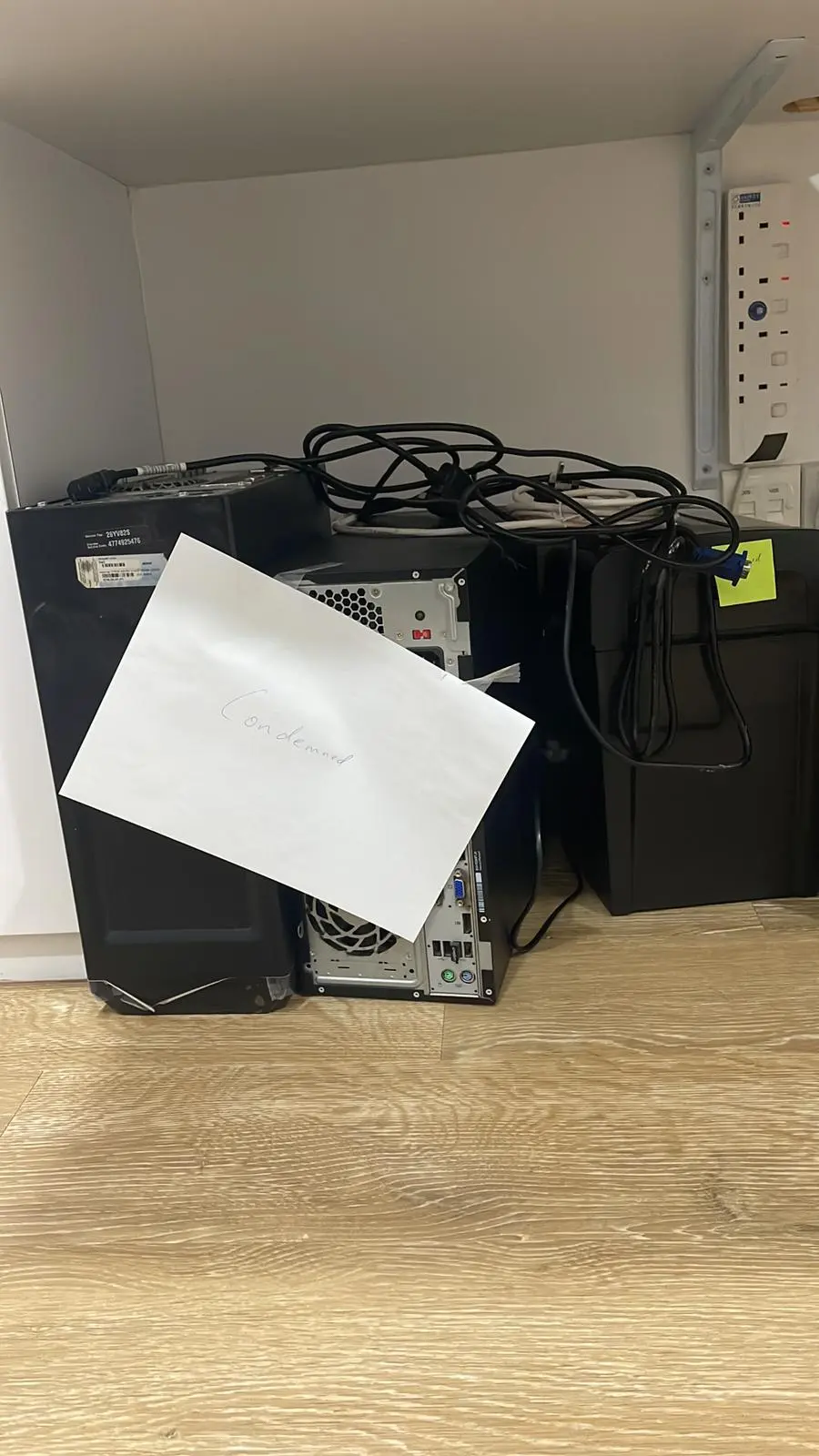
Forgetting external storage. People wipe the laptop but leave the USB thumb drive in the drawer, the external hard drive in the cable box, the SD card in the reader. Check everything.
Assuming cloud sync means local deletion. Your Google Drive files may be in the cloud, but cached copies often sit on the local drive. Wiping is still necessary.
Ignoring printers and network devices. Modern printers store print jobs. Network-attached storage (NAS) devices are literally hard drives. CCTV DVRs contain footage. If it has storage, it has data.
Waiting too long. We've cleared computers that owners "meant to wipe" for three years. The longer it sits, the more likely it ends up in a rushed move-out where data prep gets skipped entirely.
Logistics: Getting Your Wiped Electronics Out the Door
Once your drives are clean, the physical disposal is straightforward — but there are a few Singapore-specific realities worth knowing.
HDB flats: No service lift. Your old desktop tower, monitors, and peripherals go through the standard passenger lift and along the corridor. We handle the carrying — just make sure items are accessible (not buried behind renovation debris or stacked in a locked storeroom).
Condos: Rules differ per building. Some MCSTs require advance booking of the service lift, others restrict disposal pickups to certain hours. You'll need to check with your management office and arrange any required approvals before our collection date. Let us know the logistics when you send photos for your quote.
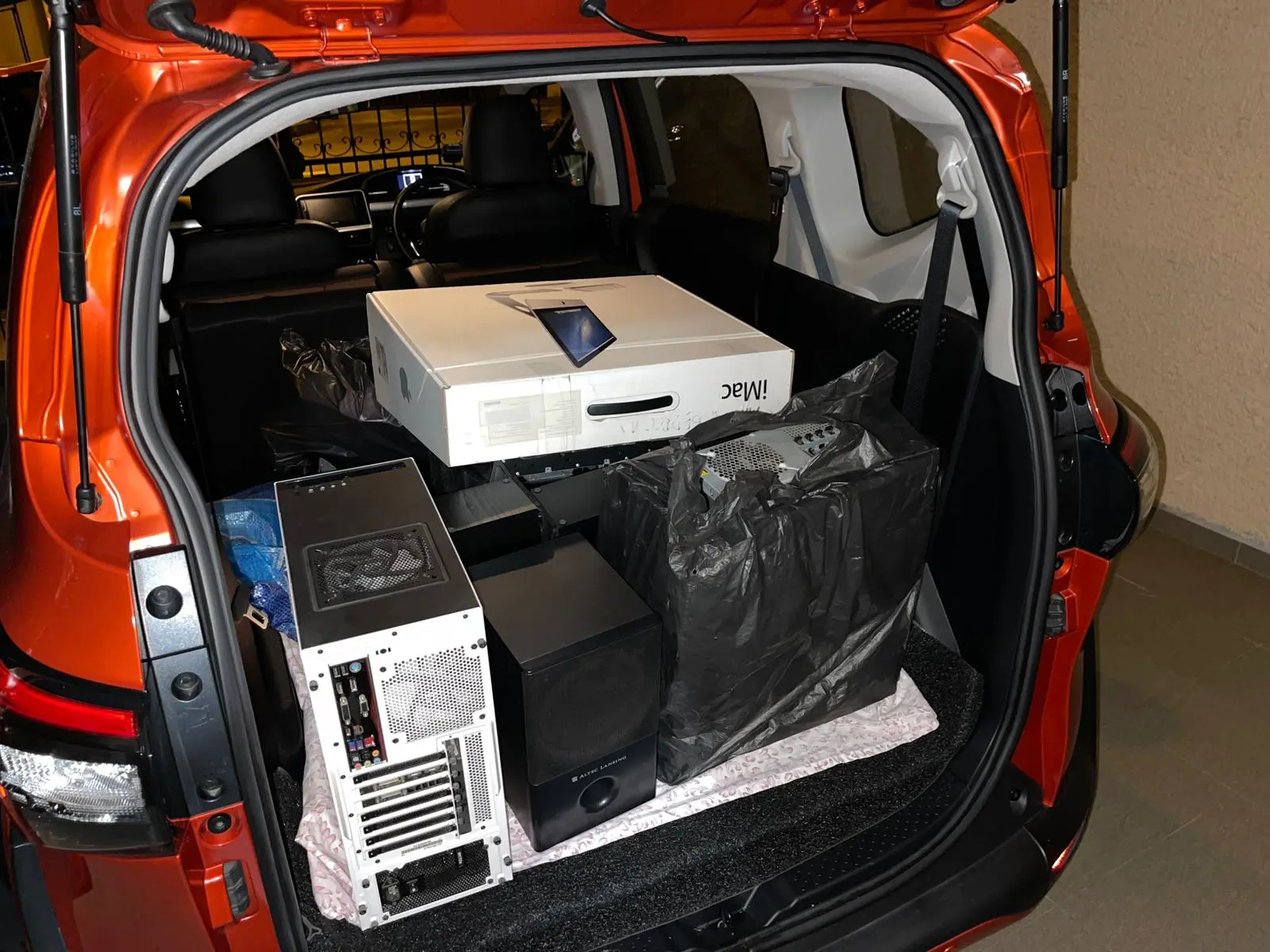
Volume matters. A single laptop? Easy. A home office with six monitors, two towers, a printer, a NAS, and a bag of cables? Still easy — just send us photos so we can assign the right vehicle and crew size.
Surcharges may apply for after-hours pickups, Sundays, public holidays, or walk-up buildings without lift access — all confirmed at quote stage.
Mini-FAQ
Q: Can I just remove the hard drive and dispose of the rest? Absolutely. If you want to keep the drive for physical destruction at home, we'll happily collect the shell, monitor, peripherals, and everything else. Just let us know when you send your photos.
Q: What happens to my old computer after you collect it? We route electronics through responsible recycling channels. Metals and recoverable materials get separated for recycling. Reusable components go into second-hand channels where possible. Nothing ends up in general waste.
Q: Do you handle bulk e-waste from home offices — not just one laptop? Yes. We've cleared entire home offices, stacks of legacy equipment, and accumulated electronics from years of upgrades. Monitors, towers, printers, cables, routers — send us photos of everything and we'll quote the lot.
Ready to Clear Your Old Electronics?
Once you've wiped your drives, the hard part is done. We handle the rest — collection, carrying, and responsible disposal routing through our computer and laptop disposal service.
Send us photos of what needs to go via WhatsApp at 9888 1292 for a free quote. No obligations, no dollar figures until we've seen what you're working with.
It's fast. It's clean. It's done.